The Effects of HP's Power Profile on vCPU Performance
- Citrix/Terminal Services/Remote Desktop Services, Hardware, Performance/Sizing, Virtualization & Containers
- Published May 28, 2013
When you buy a new HP server it comes with the BIOS setting HP Power Profile set to Balanced Power and Performance. That sounds good but is bad - at least for CPU performance in a VDI environment.
When we prepared our servers for use as virtualization hosts for Citrix XenDesktop we took great care to configure the HP Power Profile for Maximum Performance:
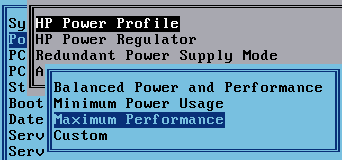
That fixed the problems with really awful CPU performance we had in the beginning. But still - some VMs were performing worse than others. When I looked at the problem I soon found a VM with bad CPU performance. I ran some benchmarks, comparing it to a “good” VM:
Test setup:
CPU: Xeon E5-2670 2.6 GHz
Hypervisor: VMware ESXi 5.0 Update 1
VM OS: Windows 7 64 Bit
VM configuration: 2 vCPUs
| Benchmark | Good VM | Bad VM |
|---|---|---|
| Cinebench 11.5 CPU » more is better | 2.20 | 1.48 |
| NovaBench CPU Test » more is better | 262 | 204 |
| Super Pi 1M [s] « less is better | 13.2 | 32.2 |
Depending on the benchmark, the “good” VM is between 28% and 244% faster than the “bad” VM. That is a lot!
I suspected the power profile setting of the server hosting the “bad” VM to be wrong, but how to check without rebooting the server and accessing the BIOS? These are production systems and we cannot use vMotion to move the VMs off the server because the VMs are on local storage. Luckily the power profile setting is not only available from the BIOS, but from the iLO console, too. It can even be changed from iLO, taking effect immediately:
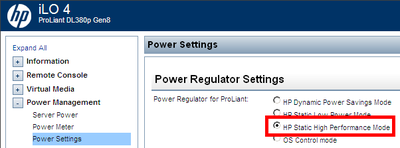
Sure enough, the “bad” VM was on a server with incorrectly configured power profile. Switching it to HP Static High Performance Mode fixed the issue. Strangely, the settings are named differently in BIOS and iLO.
If you want to know more about power profiles and power regulator: HP has a whitepaper on the topic.




Comments