Access Denied Trying to Connect to Administrative Shares C$, D$ etc.
- Windows General
- Published Aug 17, 2011 Updated May 30, 2022
Under certain circumstances, you cannot connect to administrative shares (e.g. C$) on remote computers, even though you use the right credentials. Accessing a normal (i.e. non-administrative) share works flawlessly, though.
Problem
In this situation you get the following error when trying to connect to the admin share in Explorer:
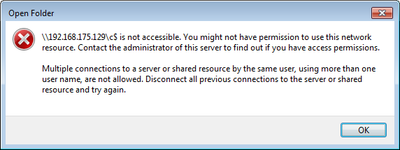
This is the message text:
\192.168.175.129\c$ is not accessible. You might not have permission to use this network resource. Contact the administrator of this server to find out if you have access permissions.
Multiple connections to a server or shared resource by the same user, using more than one username, are not allowed. Disconnect all previous connections to the server or shared resource and try again.
The message hints at multiple connections, but that is misleading.
When you try to connect to the admin share on the command line, you get a different error message:
C:\>net use \\192.168.175.129\c$ /user:win7-2\admin *
Type the password for \\192.168.175.129\c$:
System error 5 has occurred.

Access is denied.
Solution
As described in MS KB article 951916, Microsoft introduced as part of UAC a little known feature called “UAC remote restrictions”. It filters the access token for connections made with local user accounts or Microsoft accounts (the latter typically have the format MicrosoftAccount\EMailAddress). In other words, it removes the SID for “Administrators”. Connections made with domain accounts remain unchanged.
From KB951016:
If the user wants to administer the workstation with a Security Account Manager (SAM) account, the user must interactively log on to the computer that is to be administered with Remote Assistance or Remote Desktop, if these services are available.
LocalAccountTokenFilterPolicy
One may like this or not, the solution is luckily pretty simple. UAC remote restrictions can be disabled by setting the registry value LocalAccountTokenFilterPolicy to 1:
Key: HKEY_LOCAL_MACHINE\SOFTWARE\Microsoft\Windows\CurrentVersion\Policies\System
Value: LocalAccountTokenFilterPolicy
Data: 1 (to disable, 0 enables filtering)
Type: REG_DWORD (32-bit)
Setting LocalAccountTokenFilterPolicy From the Command Line
The above value can be set with the following command:
reg add HKLM\SOFTWARE\Microsoft\Windows\CurrentVersion\Policies\System /v LocalAccountTokenFilterPolicy /t REG_DWORD /d 1 /f
After a reboot access tokens from remote connections are not filtered any more. On Windows 8 and Windows 10, the reboot is not even required any more.





Comments