Radio Buttons in MFC (Visual Studio 2008 / C++)

This is a quick and dirty description of how to use radio buttons in MFC, written because I could not find this information in a single place on the web.

In the dialog editor:

  • Create a new group with the group box control and set a meaningful caption
  • Add radio button controls inside the group
  • The radio buttons must have ascending tab order
  • The first radio button (in tab order) must have the property “Group” set to True
  • All other radio buttons must have the property “Group” set to False

It should look similar to this:
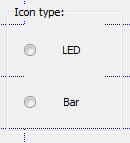
Radio button group

In the header file defining the dialog class:

  • Add a member variable of type int that will store which radio button is selected (none: -1, first: 0, second: 1, and so on).
    Example:
    int m_nLEDType;

In the cpp file implementing the dialog class:

  • In the constructor initialize the member variable (with 0)
    Example:
    CDialogConfig::CDialogConfig(CMainFrame* pMainFrame) : CDialog(CDialogConfig::IDD, pMainFrame), m_nLEDType(0)
  • In DoDataExchange add a call to DDX_Radio similar to the following (where IDC_RADIO_LEDTYPE1 is the ID of the first radio button):
    DDX_Radio(pDX, IDC_RADIO_LEDTYPE1, m_nLEDType);

When you want to read which radio button is selected:

  • Call UpdateData with a parameter of true (indicates reading):
    UpdateData (TRUE);
  • After UpdateData has been called, the member variable (m_nLEDType in this example) has the current state of the buttons.

When you want to select one of the buttons programmatically:

  • Set the member variable to the correct value (none selected: -1, first button selected: 0, second button selected: 1, and so on)
  • Call UpdateData with a parameter of false (indicates writing):
    UpdateData (FALSE);
Comments

Related Posts

Visual Studio: Fixing Broken $(WindowsSdkDir) Variable

If you get weird errors in Visual Studio that basically state files like Windows.h cannot be found, the reason may be a missing or incorrect WindowsSdkDir variable. In my case, working with Visual Studio 2008 SP1 (32 bit) on Windows 7 x64 (64 bit) everything was fine until I installed the Windows 7 SDK. After that, no SDK files could be found any more and nothing would compile. Uninstalling the SDK (which I did not really need anyway - I had installed it only to get at XPerf) did not help. After some research, I found out that the Visual Studio internal variable WindowsSdkDir (which is not an environment variable) was missing from the registry. After adding the following, everything worked like a charm again:
Software development

Latest Posts

Fast & Silent 5 Watt PC: Minimizing Idle Power Usage

Fast & Silent 5 Watt PC: Minimizing Idle Power Usage
This micro-series explains how to turn the Lenovo ThinkCentre M90t Gen 6 into a smart workstation that consumes only 5 Watts when idle but reaches top Cinebench scores while staying almost imperceptibly silent. In the first post, I showed how to silence the machine by replacing and adding to Lenovo’s CPU cooler. In this second post, I’m listing the exact configuration that achieves the lofty goal of combining minimal idle power consumption with top Cinebench scores.
Hardware

Fast & Silent 5 Watt PC: Lenovo ThinkCentre M90t Modding

Fast & Silent 5 Watt PC: Lenovo ThinkCentre M90t Modding
This micro-series explains how to turn the Lenovo ThinkCentre M90t Gen 6 into a smart workstation that consumes only 5 Watts when idle but reaches top Cinebench scores while staying almost imperceptibly silent. In this first post, I’m showing how to silence the machine by replacing and adding to Lenovo’s CPU cooler. In a second post, I’m listing the exact configuration that achieves the lofty goal of combining minimal idle power consumption with top Cinebench scores.
Hardware