Obsidian: Getting Started With the Markdown Note-Taking App
- Applications
- Published Mar 23, 2025
Ever since the original Microsoft OneNote was discontinued I’ve been on the lookout for my ideal note-taking app. Having settled on Markdown as the perfect file format I’ve tried numerous apps and occasionally blogged about the experience. In my quest to find the app that combines a great UX with elegant esthetics, speed and full keyboard control I’ve recently settled on a combination of Typora and Obsidian - none of which are perfect, but both are satisfying tools to use and they even complement each other. This article explains how to get started with Obsidian.
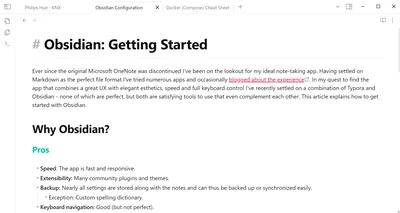
Why Obsidian?
Pros
- Speed: The app is fast and responsive.
- Extensibility: Many community plugins and themes.
- Backup: Nearly all settings are stored along with the notes and can thus be backed up or synchronized easily.
- Exception: Custom spelling dictionary.
- Keyboard navigation: Good (but not perfect).
Cons
- The Live Preview mode is OK, but it’s not quite WYSIWYG.
- The concept of separate editing and reading modes should be abandoned.
- Doesn’t open files outside of vaults and, therefore, cannot replace a generic Markdown editor (see below).
- No option to open files in a new tab by default (see below).
My Settings
Press Ctrl + , to open the settings dialog.
Editor
- Spellcheck languages: select all languages you’re writing in.
Files and Links
- Deleted files: move to Obsidian
.trashfolder (part of the vault).
Appearance
- Accent color: select a color you like.
- Themes: I went for the Minimal theme for its extensibility with the help community plugins (see below).
- Show inline title: disable (if you have the habit of starting all your notes with a H1 title).
Hotkeys: Useful Keyboard Shortcuts to Remember
Navigation
- Navigate back (as in a browser):
Ctrl + Alt + ← - Navigate forward (as in a browser):
Ctrl + Alt + →
Additional Keyboard Shortcuts I Configured
Headings
- Heading level 1…n:
Ctrl + 1throughCtrl + 9- By default, these hotkeys switch to tab 1…n (as in a browser).
- Since I don’t switch tabs in Obsidian as often as I do in a browser, I prefer to reassign them to selecting the heading level (H1, H2, …).
Code
- Toggle code section:
Ctrl + Shift + /- On a German keyboard:
Ctrl + Shift + ö
- On a German keyboard:
- Code block:
Ctrl + Shift + k
Community Plugins
I’ve installed the following two community plugins for the control they give me over the theme’s appearance and styling:
Minimal Theme Settings
This allows me to control typography settings, but I don’t use this much at the moment.
Style Settings
The Style Settings plugin lets you control many aspects of the rendered page in a similar way to what CSS allows you to do for HTML. I’m using it to match the appearance of the headings to what you’re seeing on this website. The Style Settings plugin is not tied to any particular theme, but themes need to make settings extensible for Style Settings to be able to modify them. The Minimal theme exposes a large number of its settings to plugins like Style Settings. That is the main reason I selected the Minimal theme.
Missing Features
Always Open in New Tab
Opening a new note replaces the note in the currently active tab. This is neither intuitive nor user-friendly. Unfortunately, there is no setting to change this behavior.
Workaround for File Explorer: Plugin
I’m aware of this plugin, but apart from being a “hack” (quoting its GitHub page!) it doesn’t apply to the quick switcher (Ctrl + o).
Workaround for Quick Switcher: Control + Enter
In Obsidian’s quick switcher (Ctrl + o), you can press Ctrl + Enter to open a note in a new tab. The knack is that you’ve got to remember to do it. Otherwise the note is opened in the current tab, replacing its contents.
Export to Clean HTML
As far as I know there is no way to export a note to clean HTML without (CSS) styles. I’m aware of the Webpage HTML Export plugin, but it seems to be focused on maintaining the visual style of the page as shown in Obsidian.
If you want clean HTML you need to resort to external tools.
Markdown Files Outside a Vault Cannot Be Opened
Obsidian is not a generic Markdown editor like Typora. It cannot open individual Markdown files that might be strewn across various folders on your disk. Obsidian expects files to be organized in “vaults”, folders that contain (mostly) notes.



Comments