Customizing the Default Profile
- User Profiles
- Published Dec 7, 2011 Updated Dec 9, 2011
This article is part of Helge’s Profile Toolkit, a set of posts explaining the knowledge and tools required to tame Windows user profiles.
Administrators frequently have the requirement to adapt newly created user profiles to corporate standards. This is typically done by modifying the default profile, the profile Windows uses as a template when creating new user profiles during logon.
Popular but Unsupported
For more than a decade a popular and officially santioned method of customizing the default profile went like this: log on with a typical user account. Customize that user’s profile. Log off and use either Microsoft’s CopyProfile tool or the User Profile control panel applet to copy the customized profile over the default profile.
Well, that method is no more. As the Deployment Guys describe in a very readable article, Microsoft eventually found out that, because the profile is not cleaned up in the copying process, certain undesired parts of the template user’s personality make it into every user’s profile. As a consequence they:
- declared this method as unsupported,
- removed the CopyProfile tool and
- disabled the button “Copy to…” for all but the default profile in Windows 7.
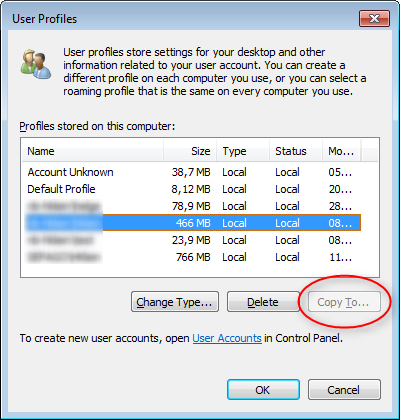
Would it not have been more logical to fix the copying process so that unwanted information is removed?
Microsoft did build a fixed copying process - though not into Windows, but into Sysprep instead. The problem with that is that there is no documentation available as to what exactly is removed when the template profile is copied to become the default profile. This introduces an element of chance not desired in enterprise environments.
Doing it Right
There is only one alternative to using Sysprep to copy a modified profile over the default profile: modify the default profile directly. This involves identifying where a specific setting is stored, loading the default profile’s registry hive and setting the desired value. The advantage of this approach is that you have full control over the process, which is typically scripted. The downside is that it is more complex. Just logging on and clicking around until the desktop looks good is much easier than hunting down specific settings with Process Monitor.




Comments