Registry Tricks
- Tips and Tools
- Published Jun 21, 2010 Updated Mar 1, 2018
Here are some pretty cool ways to work with the Windows registry.
Regedit
Multiple Instances
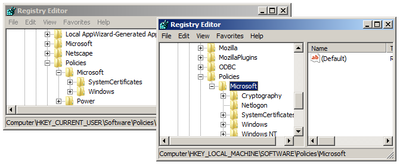
Start multiple instances of Regedit by appending the command-line parameter -m, e.g.: regedit -m.
Exporting/Importing Favorites
Regedit’s favorites are a handy way to get to keys you often need. The list of favorites is stored in the registry (where else?): HKCU\Software\Microsoft\Windows\CurrentVersion\Applets\Regedit\Favorites. Exporting the favorites to a .REG file can easily be automated with reg.exe (see below).
REG Files
Exporting to REG Files
While there is no API function to create .REG files, Windows includes the tool reg.exe that is more than up to this task. Here is an example command that exports the “User Shell Folders” key including all subkeys and values to the file ShellFolders.reg:
reg export "HKCU\SOFTWARE\Microsoft\Windows\CurrentVersion\Explorer\User Shell Folders" ShellFolders.reg
To export Regedit’s favorites to Regedit-Favorites.reg:
reg export "HKCU\Software\Microsoft\Windows\CurrentVersion\Applets\Regedit\Favorites" Regedit-Favorites.reg
Deleting Keys and Values Through REG Files
Adding keys and values to the registry with .reg files is obvious. But deleting is possible, too. Please note the use of the hyphens (-).
These lines delete the value testval1:
[HKEY_CURRENT_USER\Software\Test]
"testval1"=-
This line deletes the entire key “Test” including all subkeys and values:
[-HKEY_CURRENT_USER\Software\Test]
Commenting REG Files
.REG files can be commented, similar to .INI files. Comments are marked with a semicolon, as shown in the following example:
; This is a comment explaining why testval1 should be deleted
[HKEY_CURRENT_USER\Software\Test]
"testval1"=-
Registry Timestamps
Each registry key has a timestamp that stores the last modification time just like a folder in the file system. That information can come in handy at times, but it is not too easy to retrieve. Here are some ways to get to the timestamp:
Export to text in regedit:
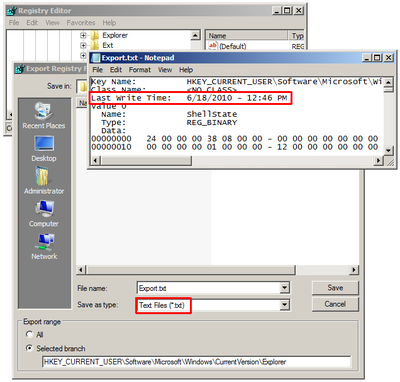
Export the key in Regedit, selecting .TXT as file type. The resulting text file contains the last write access date and time:
Use Registry Commander
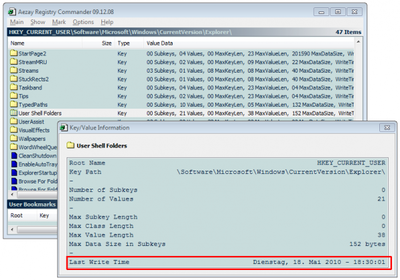
There are several things the free tool Registry Commander can do that Regedit cannot, displaying key timestamps is one of them:
Query the Windows API
You are a programmer and need registry key timestamps in your application? Do what Regedit and Registry Commander do: use the Windows API function RegQueryInfoKey.
And .NET? Sorry, nothing there. The .NET framework is an abstraction of the “real” C++ APIs and as such hides ugly details but also gems like a registry key’s timestamp.
Reg.exe on Windows x64
The swiss army knife of registry tools, reg.exe, has a little-known switch to make it access the 64-bit or 32-bit views of the registry explicitly. For example, to get to the 64-bit view of HKLM\Software from a 32-bit process use:
reg query hklm\software /reg:64
The variant /reg:32 works, too. Use that to see the 32-bit view from a 64-bit process.
Note: This switch requires hotfix KB948698 to be installed on older operating systems. Windows 7 and Server 2008 R2 include the fix.



Comments