This is an attempt to list officially announced new and changed features in Windows 8. I will update this list as new announcements are made.
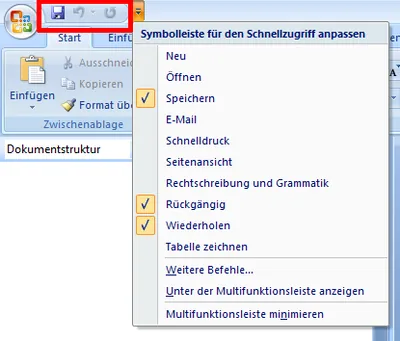
Client and Server Applications and Deployment Internet Explorer 10 is included in two different modes: as a traditional desktop app and as a Metro style app. The latter is plugin-free and relies on HTML5 (Source) Windows Store is an app store for Metro apps and a listing service for classical Win32 applications. Similar in nature to Apple’s App Store it seems Microsoft tries to offer more attractive terms to developers and make app certification more predictable. Enterprises may, but not not have to use the Windows Store. Metro apps can be distributed via other deployment technologies, too, and managed via Group Policy and PowerShell. (Source) While Metro apps can be downloaded and purchased in the Windows Store, classical Windows applications can only be listed. (Source at 57:26 in this video) Metro-style applications use a new runtime called WinRT. Their user interface can be built with XAML or HTML + CSS. Similarly to iOS and Android, Metro apps are suspended automatically when not in the foreground. Also similar to the other mobile OSes only a well-defined set of background tasks is available for application developers. When the system is running low on memory it saves the least used suspended apps to disk. (Source) Base OS and Kernel Fast startup: A combination of traditional cold boot with hibernation where user sessions are closed upon shutdown but the kernel session is hibernated. When the system is next powered on the hibernated kernel session is reused, but drivers are reinitialized (“clean slate”). With this technique, only 10-15% of the system memory’s size are needed for the hibernation file hiberfil.sys on disk. The new multi-phase resume capability further speeds up boot times by using all of the cores in the system for decompressing the hiberfile. (Source) Memory combining: Windows efficiently assesses the content of system RAM during normal activity and locates duplicate content (pages) across all system memory. Windows will then free up duplicates and keep a single copy. If the application tries to write to the memory in future, Windows will give it a private copy. (Source) Online file system scan and repair: Long checkdisk times in case of corruption were a major obstacle preventing the deployment of very large volumes. In Windows 8, long checkdisk times have been traded for constant online scans (and also repairs, if possible). File systems only need to be taken offline for actual repairs - the scan has already happened in the background. This can speed up checkdisks dramatically. (Source) Reduced memory consumption: Applications can now signal the OS if memory they allocate is unlikely to be reused (prioritization). The overall number of always running services has been reduced, several services were changed from automatic start to manual or on-demand start. The traditional desktop is loaded only if actually needed to reduce the memory footprint on tablets. Memory usage patterns of low-level components (probably the kernel) have been optimized. (Source) Task Manager has been redesigned. It now starts by default in “few details” mode. A “more details” mode offers a much improved user experience compared to previous versions of Task Manager. Highlights include network and disk utilization per process and a process resource heat map. (Source) Better support of Thin Provisioning: NTFS identifies thinly provisioned disks and enables transparent capacity reclamation (e.g. when files are deleted) for better capacity utilization. WMI and PowerShell APIs to enable capacity reclamation when appropriate or get notified via standard events whenever capacity exhaustion thresholds are crossed on such thinly-provisioned storage. Periodically, without any user intervention, a storage optimizer task completes maintenance activities including intelligent compaction of file system allocation to enable capacity reclamation on thinly provisioned disks (including on thinly provisioned spaces) (Source) Explorer, Disks and Files Explorer gets ribbons with about 200 commands (minimized by default). Similarly to Office, the ribbons’ quick access toolbar (QAT) is customizable. The much asked-for “up” button has been added, too, and placed next to “back” and “forward”. (Sources 1 and 2) File copy dialog UI improvements: both the copy dialog and the collision dialog got a major (and much needed) overhaul. (Sources 1, 2 and 3) Mount ISO and VHD files in Explorer: Mounted ISOs are shown as virtual DVD ROM drives, mounted VHDs become virtual hard disks. Unmounting is called ejecting. (Source) Storage Spaces: Multiple internal or external drives can be combined to a disk pool out of which one or more thinly-provisioned Storage Spaces can be carved. Spaces are fault tolerant (using either parity or mirroring) and may consist of disks of different types and sizes (minimum one, no fixed maximum). Similar to the deprecated Windows Home Server Drive Extender Spaces can be expanded by adding additional disks. Failed drives can be replaced while a disk pool is online. Enclosures with a disk pool can be connected to different Windows 8 computers and may be used there if more than half of the disks are available. See also the section on Storage Spaces in the Server chapter below. (Source) Networking Airplane mode: Known from smartphones. (Source) Mobile broadband: Native support for UMTS (3G) and other WWAN connections similar to already existing Wi-Fi support. Generic in-box mobile broadband class driver to eliminate the need to install device-specific software. Support for setting up new data plans with a mobile operator and for data caps on metered networks, e.g. Windows Update does not download over such networks by default. (Source) SMB 2.2: The file sharing protocol SMB (aka CIFS) has been updated to version 2.2 from 2.1 in Windows 7 and 2.0 in Vista. The new capabilities are most relevant to servers - please see the server section below (Source) Wi-Fi Direct provides Wi-Fi peer-to-peer connections between devices without the need for an access point or setting up a dedicated network. In Windows 8 Wi-Fi Direct can be used to stream media to devices (e.g. a TV) or to enable app communication (e.g. connect two Windows 8 devices to play a networked game). (Source) Wi-Fi performance: Windows 8 maintains a list of preferred networks based on user actions. It uses that list when resuming from standby to reconnect much faster (in about one second). (Source) Security TPM Key Storage Provider: A new KSP facilitates the use of the Trusted Platform Module found in many business notebooks today. Metro-style apps have APIs that make it easy to automatically enroll and manage keys on the user’s behalf. For businesses that already use smart cards, Windows 8 has a new feature that overlays the TPM KSP feature and enables the TPM to function as a virtual smart card. (Source) Picture Passwords, an alternative to traditional character passwords, are well-suited for touch devices. A picture password can be composed of taps, lines and circles drawn by the user on a picture of his own choosing. (Source) Services Windows Update: Restarts are minimized by consolidating and synchronizing with monthly security updates. This means only one forced restart per month. Only exception: critical security updates. In addition, a notification of upcoming restarts has been added to the login screen. (Source) Setup Streamlined Installation: The functionalities of Upgrade Advisor and Easy Transfer have been moved into Setup. Applications, Windows settings and personal files can be preserved when upgrading from Windows 7 (when coming from Windows XP only personal files). Upgrade time is kept in check by employing the hard link migration technique already found in USMT 4. (Source) Reset your PC: Reinstalls Windows after wiping the hard disk. Useful before repurposing a computer. Can be invoked from the running OS or Windows RE (Recovery Environment). (Source) Refresh your PC: Similar to Reset your PC, but uses the new migration capabilities of Windows Setup to preserve user data, specific Windows settings and Metro apps. Desktop applications are lost in the process, but this can be circumvented by creating a personal baseline image while the computer is still in good shape with the new tool recimg. A complete refresh cycle is probably faster than restoring a hard disk image due to the performance improvements in Setup. (Source) Tablets and Multitouch ARM: Windows 8 runs on ARM CPUs as well as the traditional Intel x86 architecture. Windows on ARM, as it is code-named, is a separate product, different from the x86 Windows 8. It runs Metro apps from the Windows Store only. It does not support x86 desktop apps, but comes with several Microsoft applications as desktop apps: IE10, Explorer, Word, Excel, PowerPoint and OneNote. (Source) Metro UI: New user interface optimized for touch-centric devices. This new UI does not supersede the traditional Windows desktop but can be used instead and even simultaneously (“essentially, you can think of the Windows desktop as just another app”). (Sources 1 and 2) Connected Standby is a semi-sleep mode available on specific devices only, presumably primarily tablets. In connected standby, Metro apps remain responsive via their managed background activities while Desktop apps are suspended by the Desktop Activity Moderator. (Source) Users and Profiles Live ID: Both local and domain accounts can be associated with a Live ID. Once an account has an associated Live ID, many Windows settings, credentials and apps (Metro apps, their settings and optionally app state) can be synchronized to the cloud and thus be made available on any Windows 8 PC. Settings from traditional non-Metro apps are not synchronized. Local Live ID-enabled accounts offer password reset from any web browser. (Source) Virtualization Hyper-V: Windows 8 comes with Hyper-V. Its capabilities are similar to Hyper-V on Server 2008 R2 SP1 (e.g. Dynamic Memory and snapshots), but there are some special capabilities: Live Storage Move allows to move VHD files of running VMs, e.g. from a file server to a local disk. Another new feature is the support for wireless NICs. Limitations for guest operating systems: no access to the GPU or to the TPM. (Source) Server Failover Clustering Cluster Shared Volume: Version 2.0 of CSV makes this great technology available as a core Failover Clustering feature. Encryption: Cluster disks can be encrypted with BitLocker drive encrpytion. Scalability: Clusters can consist of up to 63 nodes. (Source) File System ReFS ReFS is a new file system, based partly on NTFS code, which offers increased resiliency and scale (in combination with Storage Spaces). Main features (Source): Allocate on write for metadata: new metadata is written to a different location. If the write fails, the existing metadata is still intact. Checksums protect all metadata. Integrity streams are optional checksums for file content. May be disabled for databases, for example. Scrubbing: On ReFS volumes residing on a mirrored Storage Space a system task periodically scrubs all metadata and Integrity Streams. Scrubbing involves reading all the redundant copies and validating their correctness using the ReFS checksums. If checksums mismatch, bad copies are fixed using good ones. Salvage is a feature that keeps the volume online and intact even if corrupt data is detected. In that case, only the corrupt data is removed from the namespace while the rest of the volume remains unaffected. Hyper-V Guest Fibre Channel: VMs can access SANs via FC including support for guest clustering and multi-path IO. (Source) Hyper-V Replica: Asynchronous, unlimited replication of virtual machines over a network link from one Hyper-V host at a primary site to another Hyper-V host at a replica site, without reliance on storage arrays or other software replication technologies. (Source) Live Migration: Migrations with nothing but a network connection with Share Nothing Live Migration (no shared storage needed). Live Storage Migration enables storage servicing without downtime and storage load balancing. Unlimited concurrent Live Migrations (both VMs and storage). (Source) Networking: The Extensible Switch provides multi-tenancy (isolation) and traffic shaping. Resource metering is available for more accurate billing, QoS bandwidth management can improve overall performance. Network Virtualization allows customers to keep internal IP addresses when moving to the cloud. (Source) Performance: NICs can be mapped directly to VMs with SR-IOV for increased performance. Hyper-V Offloaded Data Transfer (ODX) enables secure, offloaded transfers between virtual disks, arrays and across data center with little to no CPU utilization. (Source) Scalability: 160 logical CPUs and 2 TB RAM per host. 32 virtual CPUs and 512 GB RAM per VM. 16 TB per virtual VHDX disk. 4,000 virtual machines per cluster. (Sources 1 and 2) SMB 2.2 storage: VMs can be stored on SMB 2.2 file servers. (Source) Installation Modes Server Core now includes the full .NET Framework 4.5. (Source) Minimal Server Interface is a new installation mode in addition to Server Core and the full Graphical Shell, trying to offer the best of both worlds. Technically, the Minimal Server Interface is a full server install excluding Internet Explorer, shell components such as the desktop or Explorer and Metro-style application support. It provides many of the benefits of Server Core (reduced footprint, attack surface and serviceability) for those applications that can be made to work without IE or the shell. It also enables the use of graphical management tools like MMC.EXE. (Source) Switching modes is now possible with a single command and a reboot. For example, a Server Core installation can be transformed into a full Graphical Shell system and vice versa. (Source) SMB 2.2 SMB 2 Direct: Direct memory-to-memory data transfers between server and storage, with minimal CPU utilization, while using standard RDMA capable NICs (supporting iWARP, InfiniBand and RoCE). SMB 2.2 Multichannel: Multiple redundant network paths from the server to the storage on a remote SMB 2.2 share for improved throughput and availability. SMB 2.2 Scale Out: Client load balancing by providing simultaneous access to shares from any node in a cluster. VSS for SMB 2.2. file shares: Shadow copies of data stored on remote file shares. (Source) Storage Data Deduplication: Minimized storage capacity utilization without requiring changes to applications through scheduled and selective optimization. The implementation minimizes server impact through low resource (CPU/memory) usage and focuses on high data integrity. (Source) iSCSI target: Windows finally gets an iSCSI software target (as part of the file services role). (Source) NFS: The NFS server was improved so that it can now be used as storage for VMware virtual machines. It supports NFS 4.1, is manageable from PowerShell and can use a flat file-based identity mapping store. AD LDS can still be used as an identity mapping store, but the provisioning has been simplified through PowerShell cmdlets. (Source) SMAPI: A new WMI-based Storage Management API including corresponding PowerShell Cmdlets simplifies the management of direct attach storage on the OS as well as external storage arrays. The PowerShell Cmdlets are to replace tools like diskpart and diskraid. (Source) Storage Spaces: “Scale, availability, data integrity, and high performance on commodity hardware without breaking the bank.” Storage Spaces are disk pools with support for thin provisioning, easy capacity expansion, redundancy (by mirroring or parity) and heterogeneous media (though no mixing of SSDs and HDDs). Management via the new Windows Storage Management API or PowerShell. Integration with Clustering and Cluster Shared Volumes (though without thin provisioning). (Sources 1 and 2) If I missed anything relevant please let me know by commenting below.