Samba File Server With POSIX ACLs in a Docker Container

Samba File Server With POSIX ACLs in a Docker Container
This article explains how to set up a Samba file server as an Active Directory domain member in a Docker container. This newer configuration differs from my earlier setup in one essential point: it uses POSIX instead of Windows ACLs, simplifying the administration and making it possible to modify files via other protocols than SMB. This post is part of my series on home automation, networking & self-hosting that shows how to install, configure, and run a home server with dockerized or virtualized services.
Home Automation, Networking & Self-Hosting

Samba & SMB Web Access Through Filestash With Passthrough Auth

Samba & SMB Web Access Through Filestash With Passthrough Auth
This article explains how to set up Filestash in a Docker container as a web interface for browser-based access to a Samba or SMB file server. This newer configuration improves on my earlier Filebrowser setup in one essential point: the SMB storage is accessed as the authenticating user, i.e., the user authentication is passed through to the backend storage. This means that each user sees exactly the directories and files they have access to. When a new file is created through Filestash, it’s stored with the proper permissions as if it had been created it via SMB.
Home Automation, Networking & Self-Hosting

Docker (Compose) Cheat Sheet

Docker (Compose) Cheat Sheet
This is a collection of tips and tricks I picked up while learning and working with Docker and Docker Compose on my home server and web server. Container Configuration Environment Variables Where to Define Environment Variables Environment variables are a common way to configure containers. To keep things organized, don’t put them in your Compose file but into dedicated files with the extension env. env_file vs. .env .env file: this “special” file can be used to set environment variable for use in the Compose file. The variables specified in .env are not available in the container. env_file: this section in the Docker Compose file lets you specify files that contain environment variables for use in the container. The variables specified in this section are not available in the Compose file. Bind Mounts vs. Docker Volumes Bind mounts let you control the directory structure. This has the advantage that you know exactly what gets stored where in the host’s file system. It has the disadvantage that you need to create the directory structure before you can start a container. Docker volumes are managed by the Docker engine. They’re stored in /var/lib/docker, “far away” from the Compose file. Personally, I very much prefer bind mounts because of the control they offer. I use subdirectories relative to the Compose file, e.g., ./data:/data. Keeping the container configuration and the container data in one place facilitates backups. Networking Expose vs. Ports Expose serves as documentation which ports a container is accessible on. Note: container ports are always accessible from other containers on the same Docker network. Ports makes container ports accessible to the host. Most of my services are accessible through the Caddy reverse proxy only. Opening ports to the host is, therefore, only rarely necessary. Static IP Address on the Host Network Use the Macvlan Docker network to attach a container directly to the host’s local network. Assign a static IP address by specifying the ip_range parameter in the ipam section of the Docker Compose file. See this configuration for an example. Disable Macvlan Container/Host Isolation Containers on a Macvlan network are isolated from the host. While the container can contact other machines on the local network, communications with the host are blocked. To work around that, create a virtual link with a route that points to the container’s IP address (example). Time Zone Containers should know about your local time zone. To achieve that, make it a habit to pass in /etc/localtime as a read-only volume to every container:
Virtualization & Containers

Samba File Server: Web Access Through Filebrowser With SSO & HTTPS

Samba File Server: Web Access Through Filebrowser With SSO & HTTPS
This article explains how to set up Filebrowser in a Docker container as a web interface for browser-based access to a Samba file server. Please note that in my own use this configuration has been superseded by a Filestash setup which has the advantage of accessing the storage as the authenticating user. Filebrowser and other tools like it have the disadvantage of accessing the file system through one “service” user account. This means that what the browser shows is not what the actual user is allowed to access but instead what the service account has permission to read. Also, when files are created, the owning user is the service account. This post is part of my series on home automation, networking & self-hosting that shows how to install, configure, and run a home server with dockerized or virtualized services. This article is part of a mini-series about running Samba Active Directory and a file server service in a Docker container on a home server:
Home Automation, Networking & Self-Hosting
Guide: WordPress on Dockerized Apache on Hetzner Cloud

Guide: WordPress on Dockerized Apache on Hetzner Cloud
If you’ve followed this blog for a while, you may have noticed that I’ve used a traditionally installed (i.e., not dockerized) LAMP stack for its server setup since 2014. Only recently did I switch to Docker containers. Why? Maintenance. Much facilitated maintenance. If you take a look at the articles I’ve written over the years describing how to upgrade to newer versions of Ubuntu or - god beware - PHP, you can’t help but realize what a godawful PITA it all is. Switching to Docker enforces (or at least strongly encourages) a strict separation of (public) code and (personal) configuration. With this new setup, upgrading from one PHP version to another involves nothing more than changing a version number in a text file.
Website

Docker Monitoring With Prometheus, Automatic HTTPS & SSO Authentication

Docker Monitoring With Prometheus, Automatic HTTPS & SSO Authentication
This article, effectively part 2 of my Grafana setup guide, explains how to set up Prometheus, Node Exporter, and cAdvisor with automatic HTTPS certificates (via Caddy) and OAuth single sign-on (via Authelia). This post is part of my series on home automation, networking & self-hosting that shows how to install, configure, and run a home server & network with dockerized or virtualized services.
Home Automation, Networking & Self-Hosting
authentik: Authentication, SSO, User Management & Password Reset for Home Networks

authentik: Authentication, SSO, User Management & Password Reset for Home Networks
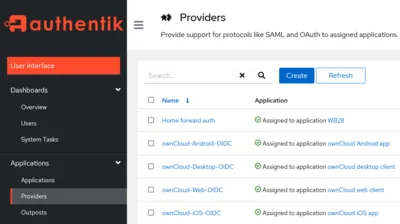
This is my second article on how to set up a modern user management and authentication system for services on your internal home network. In the previous article, I used Authelia as IdP. I looked for an alternative and explored authentik because I had some trouble getting OpenID Connect to work with Authelia. I figured it out eventually, but in the meantime, I’d already completed the authentik configuration, so here is the documentation of an alternative SSO implementation.
Home Automation, Networking & Self-Hosting

Authelia & lldap: Authentication, SSO, User Management & Password Reset for Home Networks

Authelia & lldap: Authentication, SSO, User Management & Password Reset for Home Networks
This article explains how to set up a simple but modern user management and authentication system for services on your internal home network. The solution supports important security features like two-factor authentication and single sign-on, and only requires minimal maintenance due to self-service password reset. This article is part of my series on home automation, networking & self-hosting that shows how to install, configure, and run a home server & network with dockerized or virtualized services.
Home Automation, Networking & Self-Hosting