Windows Offline Files: Problems and Solutions
- Networking, Windows Internals
- Published Mar 27, 2013 Updated Jan 19, 2016
This is a collection of bugs, errors and problems I encountered working with Offline Files, along with possible solutions or at least workarounds. For more information about Offline Files see also my other articles about this topic.
Too Many Files Available Offline
Problem
You have administratively assigned one or more directories to be available offline. However, the users have files from other directories in the Offline Files cache, too.
In one manifestation of this issue the customer had administratively assigned drive H: to be available offline. However, several users reported that when they looked at the files actually available offline (by starting Manage offline files and clicking View your offline files), they had files not only from H: but also from K: (which points to another share in the same DFS namespace).
The users affected by this problem were absolutely certain the had not manually made the files from K: available offline. Having enabled the Group Policy setting Remove “Make Available Offline” command we believed them.
Solution
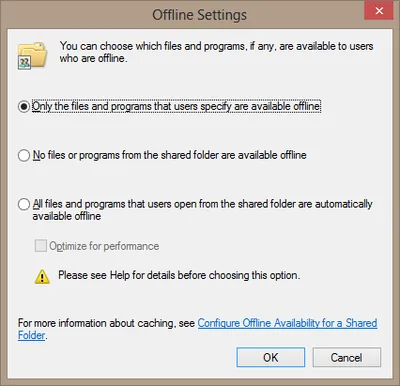
This is most likely one of the countless bugs in Offline Files. We worked around it by changing the configuration of those network shares that were not supposed to be available offline. After ticking No files or programs from the shared folder are available offline and logging off and back on the superfluous cached files were gone.
Background Synchronization Not Working
Problem
You have configured Offline Files to synchronize in the background. The synchronization runs as planned: the Offline Files icon in the notification area of the taskbar spins regularly and the Offline Files event log (Applications and Services Logs -> Microsoft -> Windows -> Offline Files -> Operational) has events with source OfflineFiles and ID 1002 (“background synchronization successful”). There is only one problem: no files are synchronized.
Solution I
We found the reason to be redirected Cookies and IE History. Those two folders can only be redirected by changing the values of the registry key User Shell Folders directly. We had done that through a custom ADM template and redirected to a subdirectory of H:. That broke synchronization. Once we changed the location of Cookies and History back to the default locations in the user profile and rebooted, Offline Files synchronization worked as expected.
Note: Other redirected folders that can be redirected “officially” did not negatively impact synchronization, e.g. Documents or Favorites.
Solution II
Another thing that may prevent background synchronization from working is incorrect configuration of your network shares. Make sure you have enabled Offline Files synchronization on each share by checking Only the files and programs that users specify are available offline:
If you are using DFS, this setting must be configured for every share in the path, including the DFS root share. Example:
If the path is \full.qualified.domain.com\dfsroot\users, the synchronization must be enabled on dfsroot (which is a share on your domain controllers) and on users (which probably is a share on your file server).
Viewing the Content of the Offline Files Cache
Problem
Windows Offline Files caches files in the directory C:\Windows\CSC. Unfortunately, very strict permissions prevent even administrators to peek inside the cache - only SYSTEM has full access.
Solution
The free tool Run As System can start arbitrary processes as local system. Pick your favorite file system browser, run it as system and you have full acess to the CSC. Windows Explorer does not work, though: it cannot be run as different user. I used Total Commander; other similar applications should work well, too.
Accessing the File Server Directly
Problem
When troubleshooting Offline Files it is often necessary to compare the view of the file system presented by Offline Files with reality, in other words compare the content of the offline files cache with the file server.
Solution
When Offline Files is enabled, network access is filtered and potentially redirected to the local offline files cache. That is how Offline Files work. To look directly at the file server a path must be used that is not configured to be available offline.
In most networks file shares can be reached via 5 paths:
- Fully qualified DFS name, e.g. \domain.com\dfsroot\share
- NetBIOS DFS name, e.g. \domain\dfsroot\share
- Fully qualified server name, e.g. \server.domain.com\share
- NetBIOS server name, e.g. \server\share
- Server IP address, e.g. \IP address\share
Offline Files caching is per absolute path. Offline Files considers \server.domain.com\share and \server\share 2 independent namespaces.
That means: if \server.domain.com\share is configured to be available offline, accessing that path shows you the content of the offline files cache, but \server\share shows you what is stored on the file server.






Comments