Windows Keyboard Mapping with SharpKeys
- Windows General
- Published Jan 28, 2015 Updated Sep 12, 2019
Or: Getting rid of Caps Lock & creating the missing context menu key
I like my current laptop, a Lenovo W540, but details of the keyboard layout really deteriorate the user experience (not to mention the horrible trackpad - I can only recommend you carry a mouse or buy the successor which is rumored to sport a less terrible design).
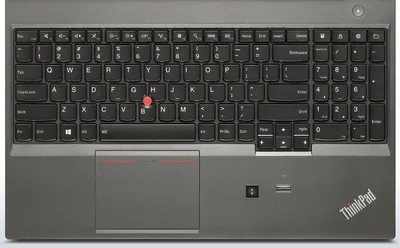
First of all, there is this totally useless numeric keypad, forcing asymmetric device usage.
Second, the trackpad (Lenovo’s interpretation of a touchpad) is simply awful. Oh, I already mentioned that.
Third, one essential key is … not there … simply missing. I am talking about the context menu key which I use a lot.
Luckily we can do something about that. The simpler method is to just use Shift+F10 instead, as Tim Dunn explains. But we can also go deeper and remap any useless key to function as context menu key.
Windows has had a keyboard remapping functionality for some time, but it requires manipulation of REG_BINARY values, which even I as a developer am not too fond of. Thankfully the free utility SharpKeys facilitates the process a lot. And while we are at it we can also get rid of the useless Caps Lock.
There is really not much you have to do - except figuring out what the secret name of the context menu key is. Why, Special: Application (E0_5D), of course. With that missing information we can configure SharpKeys:
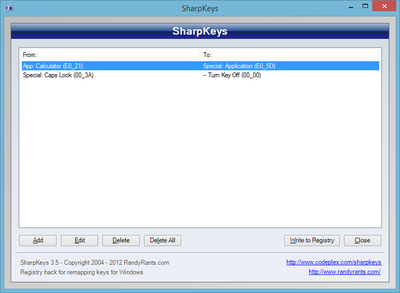
There is no need to run SharpKeys all the time, by the way. Just click Write to Registry, log off and back on (no need to reboot, either) and the changed keyboard layout should be in effect.
Note: This procedure has been tested on Windows 8.1 and on Windows 10 1703.




Comments