Switching a WordPress Site From HTTP to HTTPS
- Website
- Published Jan 15, 2015 Updated Mar 18, 2018
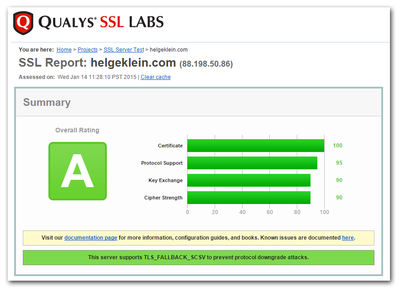
Using SSL for the entire website should be the norm these days. If you have a decent server it does not significantly reduce page speed and it allegedly even helps your Google ranking. I covered enabling SSL and configuring it so that you get an A ranking in the Qualys test in another post. This article shows how to convert an existing WordPress site from HTTP to HTTPS.
Basic Steps
The following three steps are required in order to switch your entire WordPress site to HTTPS:
- Set up SSL in your webserver configuration. This article explains how to do that for Apache.
- Replace every occurence of http://yourdomain.com with https://yourdomain.com in the WordPress database
- Redirect to HTTPS
Let me explain steps two and three in detail, but please make sure you have a full database backup before you try this out!
Search and Replace in the WordPress Database
Wouldn’t it be cool if you could search and replace in the WordPress database without having to deal with SQL imports and exports? Thanks to WP-CLI, a command line interface to WordPress, you can! Many thanks to Nicholas Dille for making me aware of this nifty utility!
Install WP-CLI
Install WP-CLI as follows:
curl -O https://raw.githubusercontent.com/wp-cli/builds/gh-pages/phar/wp-cli.phar
chmod +x wp-cli.phar
sudo mv wp-cli.phar /usr/local/bin/wp
Check if WP-CLI works correctly:
wp --info
Replace HTTP with HTTPS
Navigate to your WordPress directory (you need to use your own path, of course):
cd /var/www/helgeklein.com/public_html/
Dry Run
Test the replace command by appending the dry-run parameter. Notice how we skip the guid column.
wp search-replace 'http://helgeklein.com' 'https://helgeklein.com' --skip-columns=guid --dry-run
The Real Thing
This DOES modify your WordPress database!
wp search-replace 'http://helgeklein.com' 'https://helgeklein.com' --skip-columns=guid
Caching Plugins like W3 Total Cache
If you are using a caching plugin like W3 Total Cache delete the cache now. You should also configure it to not cache the (RSS/atom) feeds. Although that would be good for performance W3TC 0.9.4 inserted a head element before the rss tag which broke the feed.
Redirect to HTTPS
With these simple configuration changes, HTTPS is already fully configured. WordPress automatically redirects HTTP requests to HTTPS. For good measure and possible slightly improved performance redirect at the (Apache) server level. Put this in your virtual host configuration:
# HTTPS everywhere
RedirectPermanent / https://helgeklein.com/
Subsites
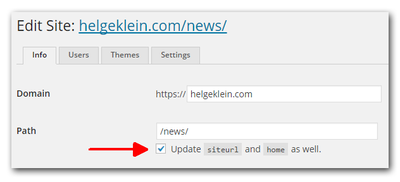
If you have a multisite installation it may be necessary to update the subsites’ siteurl and home settings. You can do that through the WordPress UI by checking the corresponding checkbox:







Comments