Saving & Restoring Total Commander Tab Sets
- Tips and Tools
- Published Jan 7, 2019 Updated Mar 4, 2019
Total Commander’s custom start menu is a great place to quickly launch all kinds of tools and programs that are otherwise hard to get to. However, TC’s start menu is not limited to external tools. It can be used to run internal TC commands, too. In this article, I am using that capability to build a simple solution for saving and restoring sets of Total Commander tabs to and from files.
Why Save and Restore Tab Sets?
The most common use case for multiple tab sets I can think of is people working in different environments or on different projects. Being able to switch the tabs needed at customer A for the tabs needed at customers B, C, or D should be very helpful.
End Result
This is what I am going to build:
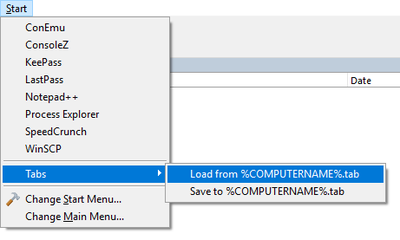
The Tabs submenu has entries for loading and saving all tabs from/to a file called %COMPUTERNAME%.tab. This is a simple solution designed as a tab backup. It can easily be extended to a solution that loads and saves multiple different tab sets.
Getting There
Click Start > Change Start Menu… to bring up the dialog that configures Total Commander’s start menu. You might or might not already have entries in your start menu. We are not going to touch them in any way. Instead, we are adding a new section with a Tabs submenu. Instructions:
- Navigate to the last of your existing start menu entries.
- Add an item with a dash (-) as the title. This creates a dividing horizontal line, separating your existing start menu entries from the new tabs functionality.
- Add a submenu with the title Tabs.
- In the submenu, add two items.
- Item 1 title: Load from %COMPUTERNAME%.tab
- Item 1 command: OPENTABS d:\Data\Total Commander%COMPUTERNAME%.tab
- Item 2 title: Save to %COMPUTERNAME%.tab
- Item 2 command: SAVETABS2L d:\Data\Total Commander%COMPUTERNAME%.tab
The result should look like this:
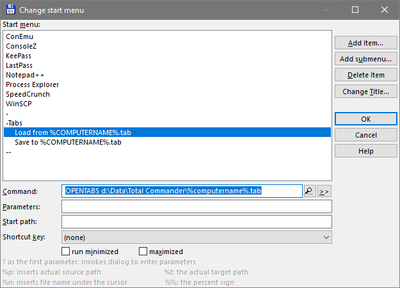
Please note:
- The path used in the commands above must not be enclosed quotes even if it contains spaces.
- As you can see in the examples, environment variables can be used.
- The path used above, “d:\Data\Total Commander”, should be adjusted as needed.
That’s it - enjoy!



Comments