Recursively Setting Directory Attributes in PowerShell

As I found out the (excellent) Egnyte Desktop Sync client for Windows ignores directories that have the system attribute set. For some reason some of the directories I wanted to sync did have this attribute set. Getting rid of the system attribute on (many) directories is harder than it seems.

Explorer

While you can get Explorer to display a directory’s attributes…
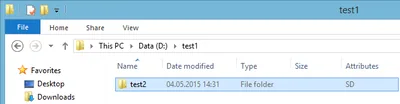
Explorer showing directory with system attribute set

…it does not let you change all of them. Specifically not the system attribute:
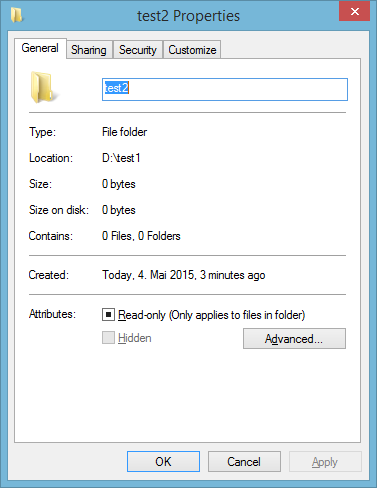
Explorer directory properties

Command Line

The good old attrib command lets you remove the system attribute, of course. It even has an option to work recursively. Unfortunately this applies to files only, not directories:

attrib -s /d /s d:\test1

PowerShell

PowerShell to the rescue! The following command removes the system attribute recursively from all directories, starting at D:\test1:

Get-ChildItem D:\test1 -Recurse -Force -ErrorAction SilentlyContinue | Where-Object {$_.PSIsContainer -and $_.Attributes -match "System"} | foreach {$_.Attributes = ""}

If you only want to list directories with the system attribute use this instead:

Get-ChildItem d:\test1 -Recurse -Force -ErrorAction SilentlyContinue | Where-Object {$_.PSIsContainer -and $_.Attributes -match "System"} | Select-Object FullName
Comments

Related Posts

Configuring Citrix ShareFile Sync from PowerShell

Configuring Citrix ShareFile Sync from PowerShell
When you have a cloud-based file sharing service it makes a lot of sense to synchronize part or all of the data with your desktop computer. Citrix ShareFile offers the Sync for Windows tool for that purpose. However, once you open its configuration screen you notice that has a severe restriction: it can only synchronize to a single local folder. In many cases it would make much more sense to synchronize different cloud folders to different locations on your hard disk. When I complained to the product manager Peter Schulz about this I learned about a hidden gem: the single folder restriction is only present in the UI; the underlying sync engine is much more flexible. And the best thing is: the sync engine can be configured from PowerShell. Here is how.
Citrix/Terminal Services/Remote Desktop Services

Latest Posts

Fast & Silent 5 Watt PC: Minimizing Idle Power Usage

Fast & Silent 5 Watt PC: Minimizing Idle Power Usage
This micro-series explains how to turn the Lenovo ThinkCentre M90t Gen 6 into a smart workstation that consumes only 5 Watts when idle but reaches top Cinebench scores while staying almost imperceptibly silent. In the first post, I showed how to silence the machine by replacing and adding to Lenovo’s CPU cooler. In this second post, I’m listing the exact configuration that achieves the lofty goal of combining minimal idle power consumption with top Cinebench scores.
Hardware

Fast & Silent 5 Watt PC: Lenovo ThinkCentre M90t Modding

Fast & Silent 5 Watt PC: Lenovo ThinkCentre M90t Modding
This micro-series explains how to turn the Lenovo ThinkCentre M90t Gen 6 into a smart workstation that consumes only 5 Watts when idle but reaches top Cinebench scores while staying almost imperceptibly silent. In this first post, I’m showing how to silence the machine by replacing and adding to Lenovo’s CPU cooler. In a second post, I’m listing the exact configuration that achieves the lofty goal of combining minimal idle power consumption with top Cinebench scores.
Hardware