Quickest Way to Create Text File of Specific Length

  • Scripting
  • Published Aug 21, 2011 Updated Sep 6, 2011

In order to perform a specific test of my new application SetACL Studio I needed a string with a length of exactly 32,739 bytes.

How to Create Such a Beast

That was the question I asked myself. I was not thrilled by the prospect of copying and pasting blocks of text in an editor until the required length had been reached.

Perl

Luckily I remembered that Perl has a function that makes such a task trivial: the ‘x’ operator. Here is what I came up with:

perl -e "print '1' x 32739" > 32739.txt

If you have Perl installed, that line can be executed from the regular Windows command line. “Perl -e” executes one command string (enclosed in double quotes). The result is then written to the file 32739.txt with the command line’s output redirection operator “>”.

Alternatives?

Are there any other elegant ways to create a text file with one line of exactly 32,739 characters? If you know of one, please let me know by commenting below.

Comments

Related Posts

PowerShell Script: Test Chrome, Firefox & IE Browser Performance

PowerShell Script: Test Chrome, Firefox & IE Browser Performance
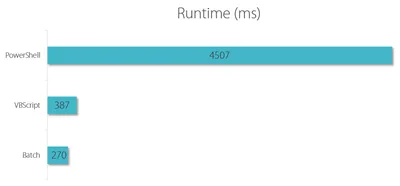
There is more than one way to test the performance of web browsers like Chrome, Firefox, or IE, but regardless of how you do it, you need a consistent workload that makes the browsers comparable. Unless you are testing with synthetic benchmarks (which come with a plethora of problems of their own) you need a way to automate browsers opening tabs and loading URLs. This article presents a simple solution to do just that.
Scripting

Configuring Citrix ShareFile Sync from PowerShell

Configuring Citrix ShareFile Sync from PowerShell
When you have a cloud-based file sharing service it makes a lot of sense to synchronize part or all of the data with your desktop computer. Citrix ShareFile offers the Sync for Windows tool for that purpose. However, once you open its configuration screen you notice that has a severe restriction: it can only synchronize to a single local folder. In many cases it would make much more sense to synchronize different cloud folders to different locations on your hard disk. When I complained to the product manager Peter Schulz about this I learned about a hidden gem: the single folder restriction is only present in the UI; the underlying sync engine is much more flexible. And the best thing is: the sync engine can be configured from PowerShell. Here is how.
Citrix/Terminal Services/Remote Desktop Services

Latest Posts

Fast & Silent 5 Watt PC: Minimizing Idle Power Usage

Fast & Silent 5 Watt PC: Minimizing Idle Power Usage
This micro-series explains how to turn the Lenovo ThinkCentre M90t Gen 6 into a smart workstation that consumes only 5 Watts when idle but reaches top Cinebench scores while staying almost imperceptibly silent. In the first post, I showed how to silence the machine by replacing and adding to Lenovo’s CPU cooler. In this second post, I’m listing the exact configuration that achieves the lofty goal of combining minimal idle power consumption with top Cinebench scores.
Hardware