Performance Footprint of PowerShell Logon Scripts
- Performance/Sizing, Scripting
- Published Sep 7, 2015 Updated Sep 10, 2015
PowerShell is a popular and extremely versatile tool, but is it a good idea to use PowerShell in logon scripts? Let’s try to find out!
Setting the Stage
I am going to compare the resource utilization of the following languages frequently used with logon scripts:
- Batch
- VBScript
- PowerShell
How do you find the logon script’s duration and resource footprint? Such data is normally not too easy to come by, but uberAgent easily makes these and other logon metrics readily available.
Test Platform
All tests were performed on a virtual Windows Server 2012 R2, fully patched as of May 2015. Additional software: Citrix XenApp 7.6 VDA and uberAgent. The VM was equipped with 1 vCPU.
All measurements were taken in steady state, i.e. the machine had been booted up well in advance and I ignored the first logon because that basically puts all executables and DLLs from disk into RAM. During subsequent logons the disk is not used very much any more since all required files can be found in the operating system’s file system cache in RAM.
Test Scripts
I was interested in language overhead. That is why I was testing with very simple scripts that write the username to a text file.
Batch
Writing the username to a file is a one-liner in batch:
echo %username% > %temp%\username.txt
PowerShell
It is a one-liner in PowerShell, too:
$env:username > $env:temp\username2.txt
VBScript
VBScript requires an entire program to be written to accomplish the same task:
Set wshShell = CreateObject( "WScript.Shell" )
username = wshShell.ExpandEnvironmentStrings("%username%")
outFileName = wshShell.ExpandEnvironmentStrings("%temp%") & "\usernamevbs.txt"
Set outFile = CreateObject("Scripting.FileSystemObject").OpenTextFile(outFileName,2,true)
outFile.WriteLine(username)
outFile.Close
Results
Script Runtime
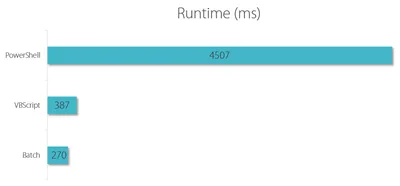
The batch file and the VBScript are in the 0.3 to 0.4 second range, whereas the PowerShell script takes a whopping 4.5 seconds to execute. Factor batch - PowerShell: 16x.
CPU Usage
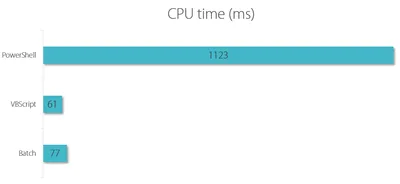
The batch file and the VBScript are in the 60 to 80 CPU ms range, whereas the PowerShell script consumes 1,123 CPU ms. Factor VBScript - PowerShell: 18x.
Memory Consumption
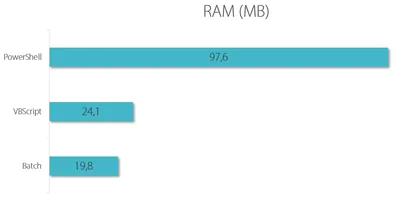
The batch file and the VBScript are in the 20 to 24 MB range, whereas the PowerShell script needs 98 MB RAM. Factor batch - PowerShell: 5x.
Conclusion
The total duration of the user logon is important to good user experience. With Citrix XenApp published applications logon speed even is critical. Logon script performance is often underestimated, partly due to the fact that Windows does not tell you how long a logon script took to execute and what the resource footprint was. uberAgent adds much needed visibility by providing detailed information about all aspects of the user logon. PowerShell is a great tool, but its resource footprint and runtime overhead make it a difficult recommendation for logon scripts which run at a point in time where many processes are competing for resources. Logon delays badly affect user experience. Any tools added to this phase should be as efficient as possible.




Comments