No Bluetooth Audio In Zoom Android App: Solution and Explanation
- Applications
- Published May 18, 2024
Getting Bluetooth headphones or headsets to work with the Zoom Android app can be a frustrating experience. This quick post documents the issue I ran into along with its solution.
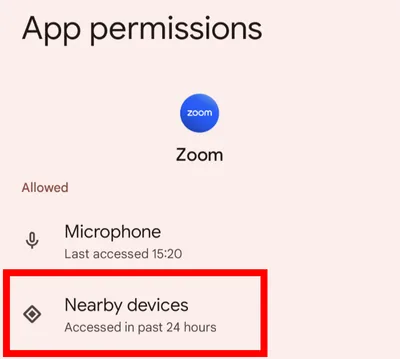
Solution: Assign Nearby Devices Permissions
If your Bluetooth device is connected to your phone but doesn’t show up in Zoom, you probably need to assign nearby devices permissions to the Zoom app.
Explanation
The root cause of this issue is two-fold:
Misleading Android Permission Naming
When an app like Zoom requests Bluetooth connect permissions, the Android OS displays a prompt that is more than a little misleading. It asks the user (source):
Allow Zoom to find, connect to and determine the relative position of nearby devices?
Do you see the term Bluetooth mentioned anywhere? Of course not. That’s why many people - including myself - tend to not grant the requested permission.
Misleading Zoom App Error Message
When Zoom starts and finds that it doesn’t have nearby devices permissions, it complains as follows:
Unable to access Bluetooth
Please allow Zoom Workplace to access your Bluetooth from device settings.
Do you see the term nearby devices anywhere? Again: of course not. Apparently, that would be too easy 😞.
Resources
- Zoom KB article: Using Bluetooth headphones with Zoom
- Zoom forum thread: Bluetooth audio troubleshooting
- Zoom forum thread: Zoom app will not switch audio to Bluetooth






Comments