Moving the Firefox Cache Directory and Profile Separately
- Miscellaneous
- Published Aug 24, 2009 Updated Oct 28, 2010
On my computers I try to keep my data on its own partition, well away from program files and other stuff that gets (re-) created anyway when I install a new OS. Separation of data from all the other stuff is an old principle and makes it possible to just delete the OS partition whenever you feel like it without giving the safety of your precious data too much thought.
Moving the Firefox Profile to a Different Drive
Most programs store their settings in the user user profile, which is typically located in the OS partition (on Windows Vista and 7 the location would be C:\Users\Username). While I do not bother with most program’s settings, some applications I configure and tune heavily. Needless to say, I do not want to lose that config work when I change the OS along with the user profile. That makes it necessary to move the config data from the user profile to my data partition. How exactly to accomplish this move is different from application to application. With Firefox (at least from version 2.x to 3.5.x) it goes like this:
- Open the file profiles.ini which is located in your user profile (%userprofile%\AppData\Roaming\Mozilla\Firefox).
- By default there is only once section [Profile0] that contains the location of your default (and probably only) profile.
- Change the entry IsRelative to 0
- Enter the absolute Path to where you want to Firefox profile to be stored
Your profiles.ini should now look similar to this:
[General]
StartWithLastProfile=1

[Profile0]
Name=default
IsRelative=0
Path=D:\Data\Programs\Firefox\Notebook
With the entire profile on your data partition, you can now safely delete drive C: without losing your Firefox configuration. Once you reinstall your OS, you just have to install Firefox, repeat the steps above (point it to its profile on your data drive) and you have everything back, including all plugins.
Moving the Cache Directory Back
There is only one problem. The Firefox profile contains the Cache subdirectory, and cached data is not what I regard as worthy to occupy space on my backup solution. So why not just move the cache back into the user profile, preferably the non-roaming local part of it? This is the way to do it:
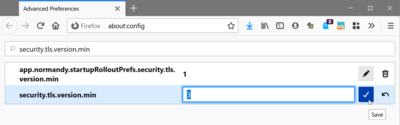
- In Firefox open the configuration page by typing “about:config” into the address bar
- Right-click into the window and create a new string
- Enter the name browser.cache.disk.parent_directory
- Enter the path to the cache directory
Please note that Firefox appends “Cache” to the path you enter.
Unfortunately Firefox does not expand environment variables for the cache path. I would have preferred to use a path like “%userprofile%\AppData\Local\Mozilla\Firefox”, but such a path is ignored by the application. Instead I had to use the absolute path to my user profile, which I do not like very much because user names can change and with them changes the path to the profile.
Once you have made sure that Firefox uses the new cache path, do not forget to delete the old cache location.






Comments