How to Determine the Windows Installation Date with and without PowerShell
- Scripting
- Published Sep 24, 2009 Updated Oct 26, 2010
There are many ways to determine when Windows was installed. Here are some of them.
Systeminfo
The systeminfo tool displays a lot of interesting information about the computer and the operating system, among them the installation date. Here is some sample output:
Host Name:                 WIN7
OS Name:                   Microsoft Windows 7 Enterprise
OS Version:                6.1.7600 N/A Build 7600
OS Manufacturer:           Microsoft Corporation
OS Configuration:          Standalone Workstation
OS Build Type:             Multiprocessor Free
Original Install Date:     9/17/2009, 3:58:54 PM               <<==
System Boot Time:          9/24/2009, 10:34:34 AM
...
WMI
The install date is stored in the property InstallDate of the WMI class Win32_OperatingSystem. Without conversion, we would get a string like “20090917155854.000000+120”.
PS C:\> ([WMI]'').ConvertToDateTime((Get-WmiObject Win32_OperatingSystem).InstallDate)

Thursday, September 17, 2009 3:58:54 PM
Registry
The install date is stored in the registry value HKEY_LOCAL_MACHINE\SOFTWARE\Microsoft\Windows NT\CurrentVersion\InstallDate as UNIX time (32-bit value containing the number of seconds since 1/1/1970).
PS C:\> [timezone]::CurrentTimeZone.ToLocalTime(([datetime]'1/1/1970').AddSeconds($(get-itemproperty 'HKLM:\Software\Microsoft\Windows NT\CurrentVersion').InstallDate))

Thursday, September 17, 2009 3:58:54 PM
What does not work
I first came up with the idea of querying the creation time of the Windows folder. This does not work because, beginning with Vista, the setup process is image-based. The only thing we can learn from querying the creation date of the Windows folder is when the installation image was created by Microsoft.
PS C:\> (Get-Item "$env:windir").creationtime

Tuesday, July 14, 2009 4:37:05 AM
My second idea was to use the creation date of a file or folder created right after setup. Here is how I looked for a likely candidate:
PS C:\> gci c: -force | where {$_.creationtime -lt "09.19.2009" -and
$_.creationtime -gt "09.16.2009"} |
select fullname,creationtime | sort creationtime

FullName                                CreationTime
--------                                ------------
C:\Recovery                             9/17/2009 3:58:50 PM
C:\temp                                 9/17/2009 10:02:46 PM
C:\System Volume Information            9/18/2009 12:43:30 AM
C:\hiberfil.sys                         9/18/2009 12:43:30 AM
C:\pagefile.sys                         9/18/2009 12:43:32 AM
Of these results, only the folder “Recovery” is pretty much identical to the “official” install date as recorded by Windows. But using such a method seems way too fragile for production use.
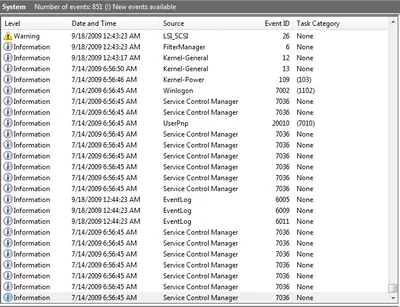
Another failed attempt is to use the date of the oldest event log entry as can be seen from the following screen shot:






Comments