Fast & Silent 5 Watt PC: Minimizing Idle Power Usage
- Hardware
- Published Feb 7, 2026
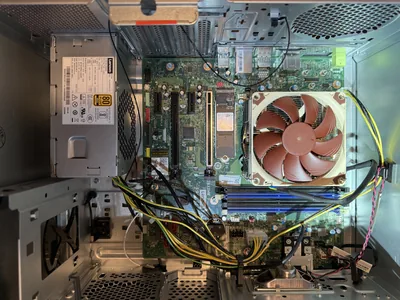
This micro-series explains how to turn the Lenovo ThinkCentre M90t Gen 6 into a smart workstation that consumes only 5 Watts when idle but reaches top Cinebench scores while staying almost imperceptibly silent. In the first post, I showed how to silence the machine by replacing and adding to Lenovo’s CPU cooler. In this second post, I’m listing the exact configuration that achieves the lofty goal of combining minimal idle power consumption with top Cinebench scores.

TL;DR
- Apply the optimized BIOS settings (see below).
- Apply the optimized Windows settings (see below).
- Don’t install a PCIe 5.0 SSD. Go for a power-efficient (but fast) NVMe v4 SSD instead.
Note: My measurements were taken on a customized Lenovo ThinkCentre M90t Gen 6 with an Intel Core Ultra 9 285 and may not apply to other CPU or even PC models.
Finding the Sweet Spot Between Low Idle Power and High Performance
Windows comes with three power plans to which Lenovo adds a fourth. I found that neither power plan is exactly right. Windows’ power saver plan gives you low idle power but terrible single-thread performance. With the balanced plan, it’s the other way around. My optimized balanced plan combines the best of both worlds, as you can see in the results below.
Idle Power Usage
- Windows power saver plan: 5 W
- Windows balanced plan: 16 W
- Helge’s optimized balanced plan: 5 W
Cinebench 2024 Single Thread
| Description | Benchmark result | Approx. avg. power usage during benchmark [W] |
|---|---|---|
| Windows power saver plan | 55 | 12.5 |
| Windows balanced plan | 142 | 50 |
| Helge’s optimized balanced plan | 142 | 44 |
Cinebench 2024 Multi-Thread
| Description | Benchmark result | Approx. peak power usage during benchmark [W] |
|---|---|---|
| Windows power saver plan | 1623 | 160 |
| Windows balanced plan | 1713 | 160 |
| Helge’s optimized balanced plan | 1725 | 160 |
How I Measured Idle Power Usage
- I measured the entire machine’s power consumption by connecting the PC’s power cord to a wattmeter.
- Before taking a measurement, I booted to the Windows desktop and waited 5-10 minutes until effectively all background activity had ceased.
- I took the lowest reading that was achieved repeatedly.
Measurement Conditions & System Specs
Hardware
- PC model: Lenovo ThinkCentre M90t Gen 6
- RAM: 64 GB (4 x 16 GB)
- CPU: Intel Core Ultra 9 285
- Graphics: integrated
- SSD: PCIe 4.0 (see note below)
- Monitor: single monitor at 3840x2560 connected via HDMI
Setup
- Cabled Ethernet: not connected
- WiFi: connected
- OS: Windows 11 Pro 25H2
- Clean install with Microsoft’s media creation tool.
- All available updates from Windows Update.
Power Consumption Notes
- SSD: NVMe SSDs of the latest generation PCIe 5.0 seem to increase idle power usage by about 5 W on the Intel Core 200 platform.
- Network: Using a cabled network connection instead of WiFi increases idle power usage by approx. 1 W.
- Display: Turning off a high-res display connected via HDMI reduces idle power usage by approx. 3 W.
- Yes, you read correctly: when the display is turned off, the idle power consumption drops from approx. 5 W to around 2 W.
Optimized Balanced Settings for Low Idle Power Consumption & High Single-Thread Performance
BIOS Settings
- Devices
- USB setup
- USB port access: enabled
- USB enumeration delay: disabled
- Front USB ports: enabled
- Rear USB ports: enabled
- Storage setup
- SATA controller: disabled
- M.2 drive 1: enabled
- M.2 drive 2: disabled
- M.2 drive 3: disabled
- Hard disk pre-delay: disabled
- Video setup
- Select active video: auto
- Audio setup
- Onboard audio controller: enabled
- Internal speaker: enabled
- Network setup
- Onboard Ethernet controller: enabled
- Wireless LAN access: enabled
- Wireless LAN PXE boot: disabled
- PXE IPv4 network stack: disabled
- PXE IPv6 network stack: disabled
- PXE boot wait time: 1 s
- TFTP window size: 4
- HTTPS boot: disabled
- Lenovo cloud services: disabled
- PCI Express setup
- ASPM support: auto
- PCIe 16x slot speed: auto
- PCIe 4x slot speed: auto
- PCIe 1x slot 1 speed: auto
- PCIe 1x slot 2 speed: auto
- Card reader: enabled
- Bluetooth: enabled
- USB setup
- Advanced
- CPU setup
- Intel Speed Shift Technology: enabled
- Intel Virtualization Technology: enabled
- VT-d feature: enabled
- TxT: enabled
- IOMMU: enabled
- C1E support: enabled
- C state support: C1C3C6C7C8C10
- Turbo mode: enabled
- Intel Manageability
- Intel Manageability control: disabled
- Intel Total Memory Encryption: disabled
- Intel SIPP support: disabled
- Dust shield alert: disabled
- Intel DPTF support: enabled
- CPU setup
- Power
- After power loss: power off
- Enhanced power saving mode: enabled
- Smart power on: disabled
- Intelligent cooling
- Performance mode: balance mode
- Automatic power on
- Wake on LAN: disabled
- Wake up on alarm: disabled
- Startup
- Boot priority order
- First boot device: boot order
- USB boot support: enabled
- Boot up numlock status: on
- Fast boot: enabled
- Options keys display: enabled
- Option keys display style: normal
- Boot priority order
Windows Settings
Power Plan
- Select the power plan: balanced
- Modify advanced power plan settings:
- PCI Express > Link State Power Management: Maximum power saving
Device Manager
Device Manager > Network adapters > [all Ethernet & WiFi adapters] > tab Power management:
- Allow this device to wake the computer: unchecked



Comments