Eating Microsoft's Dog Food - A Self-Experiment With Windows 7, Part 2: Installation
- Windows General
- Published Mar 23, 2009
In the first article of this mini-series I described how I prepared my work laptop for the installation of Windows 7 x64 beta 1 into a virtual hard disk (VHD) file. This post covers the installation itself.
At this point you may (rightly) ask: “Why yet another description of this process?” The answer is that most descriptions of how to install Windows 7 into a VHD do not work when it comes to installing the 64-bit version of Windows 7 on a computer with a 32-bit version of Windows Vista. In such a scenario the setup program refuses to make the repair option available, a necessary prerequisite to opening a command prompt. Necessary - really?
The Installation Process
- Boot from the Windows 7 x64 DVD
- Select your desired language
- Press Shift+F10 to open a command prompt
- Start the interactive diskpart shell by typing (followed by enter): diskpart
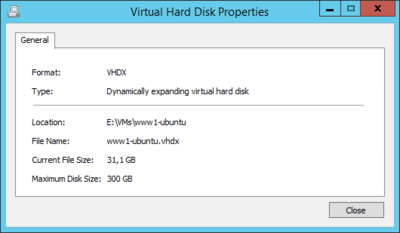
- Create a 39 GB vdisk by typing (followed by enter): create vdisk file=c:\Win7.vhd maximum=40000
- Select the created vdisk for the next command (followed by enter): select vdisk file=c:\Win7.vhd
- Mount the selected vdisk (followed by enter): attach vdisk
- Use ALT+TAB to switch to the setup program
- Click on “Install Now”
- Accept the license
- Choose “Custom Install”
- Now the setup program asks for the installation partition. You should see an additional disk which is easiest identified by its size. Obviously, it must match the size of the vdisk you just created. Select the vdisk partition.
- Ignore the warning message on this screen! Just click on “Next” and setup will start the installation.
That’s it! Easy as pie ;-)
Having Fun on the Way
Now that you have mastered the hard part, why not have some fun watching the installation?
After the first reboot:
- Press Shift+F10 to open a command prompt
- Type “taskmgr” to open task manager and watch the activity
- Much better: type “resmon” to open the overhauled Resource Monitor to really see what is going on
Now that Windows 7 sits on the (v) disk - what next? In the third article I will tell you how I fared and how many BSODs I got.




Comments