Disabling Azure Active Directory Password Expiration
- Security
- Published Jan 25, 2017 Updated Apr 18, 2020
User accounts created in Azure AD are subject to Azure AD’s password policies and restrictions, whose defaults are far from optimal. Unfortunately, the most severe shortcomings cannot currently be changed.
Azure AD Policies and Restrictions
Cloud user accounts (ie. user accounts created and managed in Azure AD) come with the following default password policies and restrictions:
- Maximum password length: 16 characters
- Password expiration after: 90 days
- Password expiration enabled: yes
- Password history: last password cannot be used again
- Password history duration: forever
The full list of default policies can be found here.
What’s Wrong with the Defaults?
As you can read here I am not a big fan of forced password changes. And a maximum password length of 16 characters? That is but a bad joke.
Unfortunately, there is not much that can be done about the latter. All the more important to enable two-factor authentication…
So what about the former? The obvious solution would be to disable password expiration altogether. That, however, is only possible per user, not per domain. That means you can disable password expiration for all users that currently exist, but as soon as you create new users you would have to remember to do it for them, too.
How to Get Rid of Forced Password Changes
There are only two ways known to me to truly disable password expiration:
- Disable password expiration per user and remember to repeat the process for any newly created users.
- Sync passwords from an on-premises Active Directory with Azure AD Connect. The sync includes password policies.
If none of those are an option, the only remaining alternative is to set the password validity period to a very high value.
Setting the Highest Possible Password Validity Period
The password validity period at least can be set per domain. Currently this is only possible with the PowerShell commandlet Set-MsolPasswordPolicy.
Azure AD commandlets are only available after the installation of the Microsoft Azure Active Directory Module for Windows PowerShell. After you have installed the MSI open an elevated PowerShell command prompt and connect to your Azure AD by running the command:
Connect-MsolService
This prompts for authentication including a second factor (if configured).
Now to set the password validity. But what is the maximum value? This doc page for Set-MsolPasswordPolicy does not even list a maximum for the ValidityPeriod parameter. Another, older doc page for the same module has to say the following about ValidityPeriod:
Specifies the length of time that a password is valid before it must be changed. This value must be from 14 to 730.
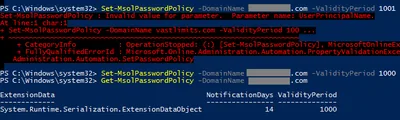
That, however, does not seem to be true (any more). Through trial and error, I found the current maximum to be 1,000. If you try to set a higher ValidityPeriod you get the error message Set-MsolPasswordPolicy : Invalid value for parameter. Parameter name: UserPrincipalName.
To set the ValidityPeriod run the following:
Set-MsolPasswordPolicy -DomainName abc.com -ValidityPeriod 1000 -NotificationDays 14
To verify query the ValidityPeriod with the Get-MsolPasswordPolicy commandlet:
Get-MsolPasswordPolicy -DomainName abc.com

ExtensionData                                    NotificationDays ValidityPeriod
-------------                                    ---------------- --------------
System.Runtime.Serialization.ExtensionDataObject               14           1000





Comments