Compacting Client Hyper-V VHDX Files
- Virtualization & Containers
- Published Oct 2, 2014 Updated Jan 6, 2016
Virtual hard disks have the same tendency to grow in size as regular disks have to fill up. Deduplication is a great way to battle this, but unfortunately it is not available for Windows 8 Client Hyper-V. I know that hacks are available describing how to transfer the relevant DLLs from Server 2012 but I value my data too much to try that. The only thing left in order to regain valuable (SSD) disk space is to compact the VHDX. That, however, is more difficult than it should be.
This article shows how to compact Windows VMs. For a description of how to compact Ubuntu Linux VMs take a look at this post.
Start Inside
Before bringing out the heavy guns do the obvious:
- Make sure KB2852386 is installed
- Run Disk Cleanup with admin permissions
These simple things unearth treasures like the following:
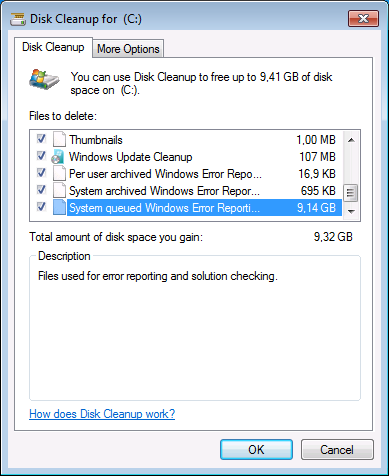
Do a full reboot after running Disk Cleanup because part of the removal happens when the system next starts up.
Zero, Defragment and Shrink
Zero
Run Sysinternals’ Sdelete tool to zero all the deleted bits on disk:
sdelete -s -z c:
Defragment
While defragmenting is not strictly necessary it increases the chances that the shrinking process in the next step is successful.
Shrink
Go to Disk Management and shrink your partition(s) as much as possible. This is the most important part. Without this Hyper-V unfortunately is not able to compact the VHDX significantly.
Compact VHDX from the GUI
When you go to a virtual machine’s settings and edit the hard drive, you are presented with a dialog box offering to compact the disk:
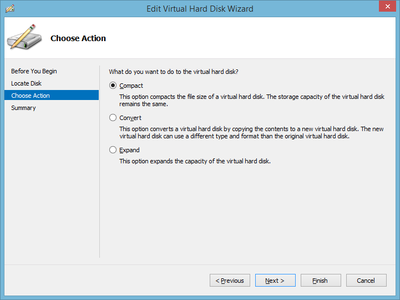
That is exactly what you want. You select it, click next and … the wizard finishes after a few (too few) seconds and the VHDX size remains unchanged.
Compact VHDX from PowerShell
I am not a big fan of dumbing down or even breaking the UI by making relevant functionality only available through PowerShell as seems to be the trend these days. This seems to be such a case. For some strange reason the Compact VHDX UI does nothing and you have to resort to PowerShell to do the job. Sad.
The relevant command is Optimize-VHD. In order for the optimization to succeed the virtual hard disk needs to be mounted first with Mount-VHD (both commands work on VHD and VHDX files).
Automation
You probably have more than one virtual machine on your PC or laptop. In order to shrink them all manually shut them down first. Then run the following command, replacing D:\VMs with the base path for your VHDX files:
gci -File -Filter *.vhd* -Path D:\VMs -Recurse | % {Mount-VHD $_.FullName -ReadOnly; Optimize-VHD $_.FullName -Mode full; Dismount-VHD $_.FullName}
Errors
The PowerShell code may report errors. Possible causes include
- The VHDX is in use (the VM is probably not turned off)
- The VHDX is a differencing disk and the parent disk is not properly connected any more
Analysis & Conclusion
The implementation of dynamically expanding virtual disks in Hyper-V leaves room for improvement, at least when looking at disk space requirements. Reclaiming (host) disk space by compacting the VHDX files succeeds only when there is unpartitioned space at the end of the virtual hard disk. That typically involves shrinking a partition from inside the VM.
A more efficient implementation could make use of the trim command to keep track which parts of a disk are not needed any more and use that information to reduce the size of the VHDX upon request.
Lacking such a more advanced algorithm be prepared to throw disk space at the problem of expanding VHDX files that won’t compact (much). Host-based deduplication would be the answer - if only it were available on client versions of Windows.





Comments