Changing the Location of Tabby Configuration Files

Tabby stores its settings in configuration files that reside in the Windows user profile. This article explains how to move the configuration files to any directory of your choice.
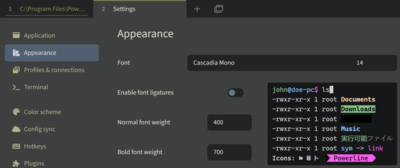
The Tabby Config File(s)

Tabby stores its configuration in the file %APPDATA%\tabby\config.yaml. It also keeps a backup in the file config.yaml.backup in the same directory.

Changing the Location of the Tabby Config Files

Tabby doesn’t provide an option to store its configuration file(s) in a different location. We can easily work around that limitation, though, by moving the files to their desired location and creating symbolic links that point from the old to the new location.

Move Procedure

  1. Quit Tabby.
  2. Move (don’t copy) the existing settings files config.yaml and config.yaml.backup from your user profile to their new location.
  3. Create symbolic links from the original config file location to the new location with mklink:
# New location. Modify TARGETPATH as needed.
set TARGETPATH=d:\Data\Tabby

# Create the links
mklink %AppData%\tabby\config.yaml "%TARGETPATH%\config.yaml"
mklink %AppData%\tabby\config.yaml.backup "%TARGETPATH%\config.yaml.backup"

References

  1. I used the same technique with Windows Terminal.
  2. Tabby Wiki: Config file location.

Comments

Related Posts

Fixing VS Code UI Unresponsiveness Caused by GitHub Copilot Extension

Fixing VS Code UI Unresponsiveness Caused by GitHub Copilot Extension
This article shows a simple solution to a problem that doesn’t seem to be adequately documented: VS Code UI lags, freezes, and delays caused by the GitHub Copilot extension. Problem: VS Code UI Becoming Slow Having worked on a Python project for a while, I noticed that VS Code’s UI was frequently freezing for seconds at a time. This was happening in various places of the UI: the editor itself but also in the GitHub Copilot Chat window. Copilot also seemed to be taking more and more time getting ready to answer, and the extension-host process would fully saturate one CPU core for long periods of time.
Applications

Latest Posts

Fast & Silent 5 Watt PC: Minimizing Idle Power Usage

Fast & Silent 5 Watt PC: Minimizing Idle Power Usage
This micro-series explains how to turn the Lenovo ThinkCentre M90t Gen 6 into a smart workstation that consumes only 5 Watts when idle but reaches top Cinebench scores while staying almost imperceptibly silent. In the first post, I showed how to silence the machine by replacing and adding to Lenovo’s CPU cooler. In this second post, I’m listing the exact configuration that achieves the lofty goal of combining minimal idle power consumption with top Cinebench scores.
Hardware

Fast & Silent 5 Watt PC: Lenovo ThinkCentre M90t Modding

Fast & Silent 5 Watt PC: Lenovo ThinkCentre M90t Modding
This micro-series explains how to turn the Lenovo ThinkCentre M90t Gen 6 into a smart workstation that consumes only 5 Watts when idle but reaches top Cinebench scores while staying almost imperceptibly silent. In this first post, I’m showing how to silence the machine by replacing and adding to Lenovo’s CPU cooler. In a second post, I’m listing the exact configuration that achieves the lofty goal of combining minimal idle power consumption with top Cinebench scores.
Hardware