Changing the Location of Notepad++ Configuration Files
- Applications
- Published Oct 13, 2019 Updated Jul 19, 2021
Depending on what you selected during the installation, Notepad++ stores its configuration files either in the installation directory or in your user profile. This article describes a simple way of moving your existing configuration to a different location.
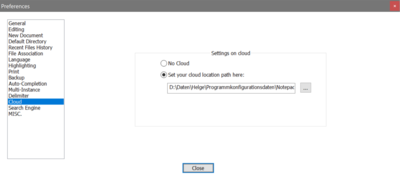
Moving the Notepad++ Configuration Files
Moving the Notepad++ configuration is simple but not intuitive. The trick is to make use of the option to store the settings in a cloud (see the screenshot above). This was obviously designed to move the application’s configuration files to the directories of popular cloud sync tools like Dropbox or Google Drive. However, it is not limited to that. You can enter any local or remote file system path (including UNC paths) and Notepad++ will happily move all of its configuration files to the specified location.
Where the Cloud Location is Stored
Notepad++ stores the location of the cloud settings path in a dedicated file located in cloud\choice below the installation directory.
Locating the Notepad++ Settings Directory
If no cloud location is specified (see above), Notepad++ stores its settings files in %AppData%\Notepad++, which resides in the user profile.
The location of the settings files can be moved to the installation directory by creating the file DoLocalConf.xml in the install directory (the one that contains notepad++.exe).






Comments