Changing the Location of KeePass Configuration Files
- Applications
- Published Apr 28, 2020 Updated Jan 4, 2026
Depending on your KeePass package (installer or portable), the default settings location may resolve to the installation directory or the user profile. This article explains how to locate the configuration file and shows how to move it to any directory of your choice.
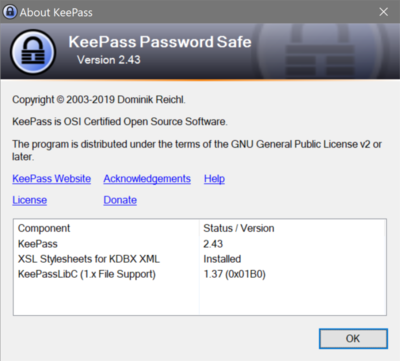
The KeePass Config File
KeePass stores all settings in the file KeePass.config.xml. The location of this config file depends on your setup.
Locating the KeePass Config File
Short Answer
If you installed KeePass from the installer package, your config file is located in %APPDATA%\KeePass. If you installed KeePass from the portable ZIP package, your config file is located in the same directory as KeePass.exe.
Long Answer
The config file is searched in the directory of the KeePass.exe executable first. Only if a global file is present and contains the setting <PreferUserConfiguration>true</PreferUserConfiguration> does KeePass process per-user (local) configuration files.
The KeePass installer package sets <PreferUserConfiguration> to true.
The portable package does not contain a configuration file, so <PreferUserConfiguration> defaults to false.
Per-user configuration files are stored in %APPDATA%\KeePass.
Changing the Location of the KeePass Config File
To specify an alternative location for the config file start KeePass from a shortcut with the -cfg-local command-line parameter. Example:
D:\Tools\KeePass\KeePass.exe -cfg-local:"d:\Data\Programconfig\KeePass\Machine1\KeePass.config.xml"





Comments