Changing the Location of the Windows Terminal Settings Files
- Applications
- Published Mar 8, 2026 Updated Mar 10, 2026
Windows Terminal stores its settings in configuration files that resides in the Windows user profile. This article explains how to move them to any directory of your choice.

Where are the Settings Files Located?
The location of the Windows Terminal settings file is hard-coded. The exact path depends on the app variant you installed, but it’s always in the user profile:
- Stable release:
%LOCALAPPDATA%\Packages\Microsoft.WindowsTerminal_8wekyb3d8bbwe\LocalState - Preview release:
%LOCALAPPDATA%\Packages\Microsoft.WindowsTerminalPreview_8wekyb3d8bbwe\LocalState
The LocalState directory contains two files:
settings.jsonstate.json
Move the Directory, Not Settings.json!
Many guides (including an earlier version of this one) recommended moving and symlinking only settings.json. Don’t do that!
While it seems to work, it causes weird problems:
- After adding a new profile and restarting Windows Terminal, the new profile is gone from the UI.
- Hot-reloading doesn’t work when making changes to
settings.jsondirectly in an editor.
Changing the Location of the Windows Terminal Settings Files
Windows Terminal doesn’t provide an option to store its configuration file in a different path. We can easily work around that limitation, though, by moving the LocalState directory to its desired location and creating a symbolic link that points from the old directory to the new path.
Move Procedure
- Quit Windows Terminal.
- Move (don’t copy) the existing settings directory
LocalStatefrom your user profile to its new location. - Create a directory symbolic link from the original location to the new location with
mklink:
Move Script
The following simple script implements the procedure:
# New location. Modify TARGETPATH as needed.
set TARGETPATH="d:\Data\Windows Terminal"

# Create the link
mklink /d "%LOCALAPPDATA%\Packages\Microsoft.WindowsTerminal_8wekyb3d8bbwe\LocalState" %TARGETPATH%
Notes
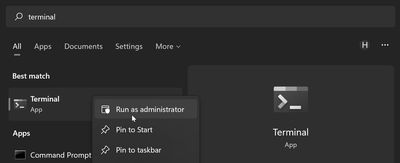
mklinkrequires admin rights.- Adjust the source path in the
mklinkcommand according to the app variant you installed (see above). state.jsonseems to be specific to the user and/or machine. This means you should keep settings from different users and/or machines separated.





Comments