Beautiful Slide Decks from Markdown: Presenting with Slidev
- Applications
- Published Oct 25, 2026
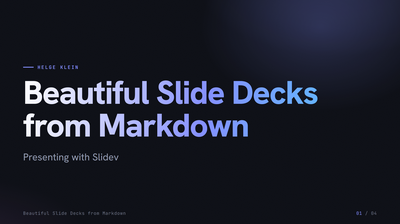
Would you like to get away from PowerPoint and author slide decks in Markdown? Then Slidev may be just what you’re looking for. It’s a web app for presentations. The fact that it’s geared towards developers shouldn’t put you off. After all, who isn’t a developer these days, with AI? Slidev comes with the beautiful Tahta themes and supports features like syntax highlighting and animations. Export options to PDF and PPTX allow for easy sharing. This article shows how to get started.
Overview
Slidev requires a development environment based on Node.js to preview and present your slides. The actual slide deck content is stored in one (or, optionally, multiple) Markdown files, so authoring is done in a text editor. Slidev’s guide gives a good overview of the process and usage.
Setting Up Slidev
We’ll install & manage Node.js with fnm.
Install fnm (instructions for Windows; Linux and macOS are supported, too):
winget install Schniz.fnm
Configure environment variables for the current shell and add Node.js commands to the path:
# Example of the vars added:
# $env:FNM_MULTISHELL_PATH = "C:\Users\<user>\AppData\Local\fnm_multishells\..."
# $env:FNM_PORTABLE = "true"
# $env:PATH = "$env:FNM_MULTISHELL_PATH;$env:PATH"
fnm env --use-on-cd | Out-String | Invoke-Expression
Add the above command to your PowerShell $PROFILE (docs). Alternatively, run it once in every new shell in which you want to work with slidev.
Install Node.js in a given version (24 is the current LTS version) and make it the default:
fnm install 24 --corepack-enabled
fnm default 24
Creating a Slide Deck
Create a folder for your slide deck. Store the Node.js version in the project root:
echo "24" > .node-version
Create a new Slidev project. Accept the default name (slidev). When asked Install and start it now using npm?, select no:
pnpm create slidev
Switch to the slidev folder and run the pnpm installer:
cd slidev
pnpm install
Edit pnpm-workspace.yaml, allowing build scripts from dependencies where necessary. Example for sharp (an image processing library):
allowBuilds:
  playwright-chromium: true
  sharp: true
Also specify an AI skills directory to prevent error messages:
skills:
  dirs:
    - .skills
Install depencencies (e.g., the Tahta theme):
pnpm add -D slidev-theme-tahta
View or start the presentation:
pnpm dev
Slide Deck Content Skeleton
The slide deck content is in the file slides.md. After the steps above, it contains a Slidev demo presentation that you’ll want to replace.
You can use the following skeleton content to get started with a new deck:
---
theme: slidev-theme-tahta
themeConfig:
   # Use any of the following variants: editorial, brutalist, soft, minimal, paper, atelier, notebook, lagoon, press, boardroom, signal, muse, poster
   variant: boardroom
bg: mesh
layout: cover
transition: fade
title: Your session title goes here
subtitle: Your subtitle goes here
kicker: Your name
---

---
layout: section
transition: fade
title: First section
index: 1
---

---
layout: default
transition: fade
title: First content slide
kicker: First section
---

- Markdown content

---
layout: end
transition: fade
title: Questions?
subtitle:
contact: Your contact info
---
Keeping the Sources on a Network Drive
Your slidev folder is essentially a Node.js project. This means that some 30,000 files need to be downloaded to your disk. While npm keeps them in a project-local node_modules subfolder, pnpm puts them in a central store and creates hard or symlinks from the project-local node_modules subfolder.
If your project folder is on a mapped network drive you probably don’t want those 30,000 files on the mapped drive, too. Also, IO performance will likely be poor, and pnpm’s linking may even fail. Therefore, work on a local SSD.
You can still keep your sources on a network drive if you treat it as a Git repository. Here’s how to set that up.
Create a repository on the SMB share (Z:):
md Z:\presentations\some-presentation\slidev
cd Z:\presentations\some-presentation\slidev
git init

# Allow pushes to a repo with an active working tree
git config receive.denyCurrentBranch updateInstead

# If the "git config" command returns the error "fatal: not in a git directory", disable Git's repository ownership check globally
git config --global --add safe.directory "*"
Clone the repo to your local disk (C:):
md C:\Code\some-presentation
cd C:\Code\some-presentation
git clone Z:\presentations\some-presentation\slidev .
Create a .gitignore file in your project with the following content:
node_modules/
.slidev/
dist/
Continue with Creating a Slide Deck (see above).
After making changes, push them to the SMB share:
git commit -am "initial commit"
git push -u origin main
Lessons Learned
Slidev
- HTML-encode the ampersand (
&→&). - Follow YAML syntax to the letter.
- Always specify the
titlefor a slide even when leaving it empty. If not, weird things may happen, at least in the Tahta theme. - While creating your slide deck, the browser preview is automatically reloaded. Sometimes Slidev (or rather: Vite) seems to pick up outdated content. When that happends, restart the (p)npm process.
Tahta Theme
- Documentation is bit scarce.
- Use:
- The Live Explorer on the homepage.
- The source code for the Live Explorer’s slides.
- Explanation in AGENTS.md (sic!).
Slidev Alternatives
Marp looks like an interesting alternative to Slidev. It seems to be less focused on a developer audience. I disregarded it because I didn’t find any well-designed themes.



Comments