AppLocker - Fact Sheet
- Security
- Published Jul 18, 2012 Updated Nov 21, 2019
This is the first in a small series of articles about AppLocker, a technology built into Windows that enables administrators to audit and optionally block application execution.
Requirements
AppLocker works on:
- Windows 7 Enterprise or Ultimate
- Server 2008 R2 Standard, Enterprise or Datacenter
Domain controllers must be running at least Windows Server 2003.
The Application Identity service must be running or configuration changes cannot be processed. Contrary to popular belief the service is not required for rule enforcement - stopping it does not unblock restricted applications.
File Types
AppLocker monitors and/or controls the execution of the following types of files:
- Executables (*.exe, *.com)
- Installers (*.msi, *.msp)
- Scripts (*.bat, *.cmd, *.js, *.ps1, *.vbs)
- DLLs (*.dll, *.ocx)
What It Does Not Do
AppLocker does not audit or control the execution of:
- Individual scripts that run in their own host process (e.g. Perl or Python). The host process may be blocked entirely, though. If, for example,
perl.exeis blocked, no Perl script can be executed. - Individual macros (e.g. Microsoft Office)
- Posix subsystem code. As an alternative, the Posix subsystem could be disabled.
- Individual 16 bit programs. As an alternative, the 16 bit subsystem could be blocked entirely. This applies to 32-bit Windows 7 only.
- Individual App-V applications (App-V works with AppLocker, it is just not possible to block only certain applications).
Audit or Enforce
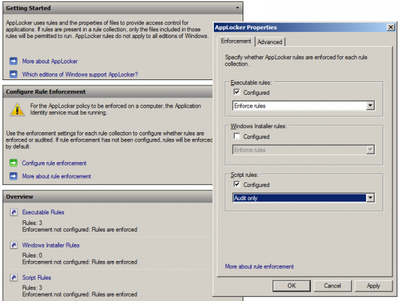
AppLocker can operate in auditing mode, enforcement mode or switched off completely. The mode of operation is configured for each file type individually. It is therefore easily possible to audit scripts, enforce applications and leave installers and DLLs alone.
Rules
Similar to a firewall, AppLocker works with rules that control whether to log, permit or deny an operation. Rules apply to users or groups, not computers. This makes it possible to differentiate between restricted standard users and unrestricted power users, for example.
AppLocker has three different types of rules:
- Publisher: applies to all files that are digitally signed by a certain organization. Can optionally be limited to a certain product name, file name and file version.
- Path: applies to files in a certain path or to individual files in a specific location.
- Hash: applies to individual files identified by their hash value (note that if a file is updated or patched the hash changes and the rule becomes invalid).
Configuration and Rule Distribution
AppLocker rules are typically distributed by domain-based group policy. The relevant node is: Computer Configuration -> Policies -> Windows Settings -> Security Settings -> Application Control Policies -> AppLocker. Configuring AppLocker through local group policy is possible, too.
Additionally, rules can be created from PowerShell. It is also possible to test from PowerShell whether specific files are allowed to run.
AppLocker Internals
James Forshaw has started a nice series of articles about the internals of AppLocker:






Comments